How to Safely Enable Unknown Sources & Install APKs on Android
Description
Installing apps outside the official Google Play Store, commonly known as sideloading is one of Android’s core advantages. Whether you want to test beta features, install open-source utilities, or run apps unavailable in your region, sideloading gives you full control over your smartphone.
Modern Android releases (Android 10 through Android 16) no longer use a single global “Unknown Sources” switch. Instead, Android enforces a per-app security model where you grant installation rights only to the specific browser or file manager you trust.
Understanding Android’s “Install Unknown Apps” Security Model
In older Android versions (Android 7.0 and earlier), enabling “Unknown Sources” triggers a universal loophole: any app could silently trigger an APK install.
But from Android 8.0 and continuing through modern releases (Android 12, 13, 14, 15, and 16), Android requires a grant permission individually to each specific app attempting to install software (such as Google Chrome, WhatsApp, or your File Manager).
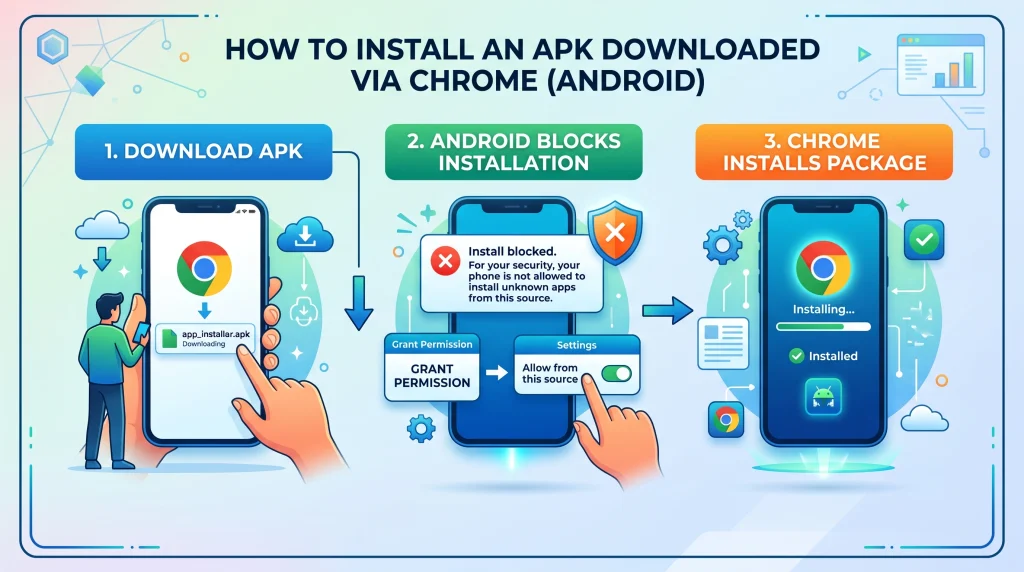
Method 1: The Fast In-App Method (Recommended)
When you download an APK straight from a web browser or receive it through a messaging app, Android will automatically trigger a security prompt when you try to open it.
Total Time: 1 minute
Locate and Open the Downloaded APK
Open your browser’s Downloads menu or your device’s Files app, then tap on the downloaded .apk package.
Click the ‘Settings’ on the Security Prompt
Android will display a warning alert: “For your security, your phone is not allowed to install unknown apps from this source.” Tap Settings on the alert.
Turn on ‘Allow from this source’
Turn on the switch next to Allow from this source.
4.Proceed with Installation:
Press your device’s Back button once to return to the installer dialog, then tap Install.
Method 2: Brand-by-Brand Settings Guide
If you prefer configuring your device permissions in advance or need to troubleshoot a blocked download, use the exact settings path for your phone manufacturer:
Samsung Galaxy (One UI)
- Open Settings and tap Security and privacy (or Apps).
- Select Install unknown apps (located under Special access or More security settings).
- Find the app you use to download or manage files (e.g., Chrome, Samsung Internet, or My Files).
- Switch the toggle to Allowed.
Stock Android / Google Pixel / Motorola
- Open Settings > Apps > Special app access.
- Tap Install unknown apps.
- Choose your web browser or file manager.
- Toggle Allow from this source to the On position.
Xiaomi / Redmi / POCO (HyperOS & MIUI)
- Open Settings > Privacy & Security (or Protection & Privacy).
- Tap Special permissions > Install unknown apps.
- Select the browser or File Manager app.
- Toggle Allow from this source. A 10-second warning screen will appear—check “I am aware of the possible risks” and tap OK.
OnePlus / OPPO / Realme (OxygenOS & ColorOS)
- Open Settings > Security (or App Management).
- Tap Special app access > Install unknown apps.
- Locate and select your browser or download tool.
- Enable Allow from this source.
If you have got any other andriod phne search for the guides and than follow those steps.
How to Handle Google Play Protect Warnings
When installing third-party APKs, Google Play Protect may show a pop-up warning stating “Unrecognized App” or “Blocked by Play Protect”. This happens because the developer has not registered the app signature with Google’s Play Console.
Step 1: Tap More details (or the small downward arrow) on the warning screen.
Step 2: Select Install anyway (unsafe) to complete the setup.
Important: Do not turn off Google Play Protect globally in your device settings. Keeping Play Protect active ensures your phone continues scanning for real malware in the background.
Best Practices for Safe APK Sideloading
| Precaution | Action | Why It Matters |
|---|---|---|
| Pre-Installation Scan | Upload the .apk file to VirusTotal.com | Cross-references the file against 70+ antivirus databases to detect hidden trojans. |
| Permission Audit | Check requested permissions during setup | A basic card game or utility should never ask for SMS, Call Logs, or Accessibility rights. |
| Revoke Access | Turn off “Install unknown apps” after use | Prevents malicious web scripts from silently triggering downloads later. |
| Avoid Modified Mods | Sideload original developer builds | Cracked or modified APKs often have malicious spyware injected into their code. |
Troubleshooting Common Installation Errors
- “Parse Error / Problem Parsing the Package”: This indicates either a corrupted download or an OS incompatibility (e.g., trying to install an APK built for Android 15 on an Android 10 phone). Re-download the file or check the minimum OS requirement.
- “App Not Installed”: Caused by insufficient device storage, an existing version conflict (signature mismatch), or an unsupported CPU architecture (e.g., 32-bit ARMv7 vs 64-bit ARM64). Uninstall any previous version before reinstalling.
- “Blocked by Administrator / Advanced Protection”: If you have Android 16’s Advanced Protection Mode or a corporate MDM profile enabled, sideloading is blocked by policy until you disable that mode in security settings.
Frequently Asked Questions (FAQ)
Is enabling “Install Unknown Apps” safe?
Yes, as long as you only download files from verified, reputable sources. Android’s per-app permission ensures that rogue apps cannot install background software without your explicit consent.
Why does Android say “App Not Installed”?
This error usually occurs due to an architectural mismatch (e.g., an ARMv7 package on a 64-bit-only device), insufficient storage space, a corrupted APK download, or a signature conflict with an existing version of the app already installed on your device.
Can I turn off the permission after installing the app?
Yes. It is considered good security hygiene to navigate back to Special App Access > Install Unknown Apps and disable the permission once your desired app is running.
Do I need to enable the setting every time I install an APK?
No. Once you enable “Allow from this source” for a specific app (like Google Chrome), that browser retains permission to install future APKs until you manually turn it off.
Does enabling unknown sources void my Android warranty?
No. Sideloading is a native Android operating system feature designed for developers and end users. It does not alter your device firmware or void hardware warranties.