
Top 6 Reasons Android Shows ‘App Not Installed’ & How to Fix Them
Description
Frustratingly, few things are more annoying on Android than finding a crucial APK, only for the system to stop with a generic “App not installed” error during the installation process. While this failure can feel like guesswork, it usually boils down to a conflict with an existing installation, file corruption, security blocks, or hardware incompatibility. Read on for the complete App Not Installed Android fix guide.
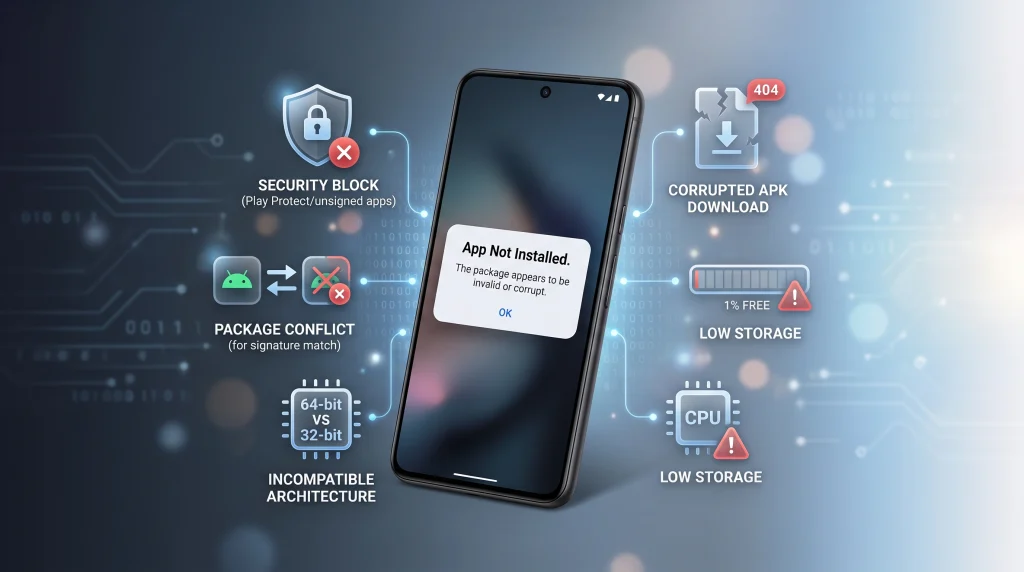
| Common Cause | What Happened | Quick Solution |
|---|---|---|
| 1. Signature Conflict | An existing version has a different developer key or higher version code. | Completely uninstall the old version, reboot, and reinstall. |
| 2. Corrupted Download | Incomplete download or truncated transfer via chat/browser. | Delete the file, clear cache, and re-download from the source. |
| 3. Architecture Incompatibility | 32-bit APK on 64-bit-only phone, or unsupported OS version. | Download the arm64-v8a or Universal APK build. |
| 4. Low Internal Storage | Android needs 2x–3x the APK size to decompress and compile. | Free up at least 1 GB to 2 GB of internal device memory. |
| 5. Play Protect / Auto-Blocker | Security modules blocked the unsigned or third-party package. | Temporarily allow installation through Play Protect or device security settings. |
| 6. Split APK / App Bundle | Trying to install a raw base APK without its configuration splits. | Use a Split APK Installer (SAI) or obtain a monolithic standalone APK. |
1. Signature Conflict: The Primary App Not Installed Android Fix
This is the primary scenario requiring an App Not Installed Android fix. Android’s package manager enforces a strict security rule: an app can only be updated if the new APK is signed with the same cryptographic key as the currently installed version.
If you have an official Play Store version and try to install an APK downloaded from the web, the installation will fail because Google’s server signing key differs from direct developer builds. The same error occurs if you try to downgrade an app to an older version over a newer build.
How to Fix App Not Installed:
- Long-press the existing app on your home screen or app drawer and tap Uninstall.
- Go to Settings > Apps and verify that no leftover work profiles or dual-app clones remain.
- Restart your phone to clear the Android Package Manager cache.
- Run the new APK installer.
2. Corrupted File Recovery: An Essential App Not Installed Android Fix
APKs are compressed archives (similar to .zip files). If a network connection drops for a second during download, the file header or archive contents can become truncated. Transferring files through messaging apps (like Telegram or WhatsApp) can also silently corrupt package structures or modify file extensions.
[ Incomplete Download: 42.1 MB / 48.0 MB ] ──> [ Android Manifest Unreadable ] ──> "App Not Installed"
How to Fix It:
- Check the file size on the download page and compare it with the file size in your Downloads folder.
- Delete the corrupted
.apkfile completely. - Clear your browser’s download cache (Settings > Apps > Chrome > Storage > Clear Cache).
- Download the file again using a stable Wi-Fi connection.
3. CPU Architecture Incompatibility: Hardware-Level App Not Installed Android Fix
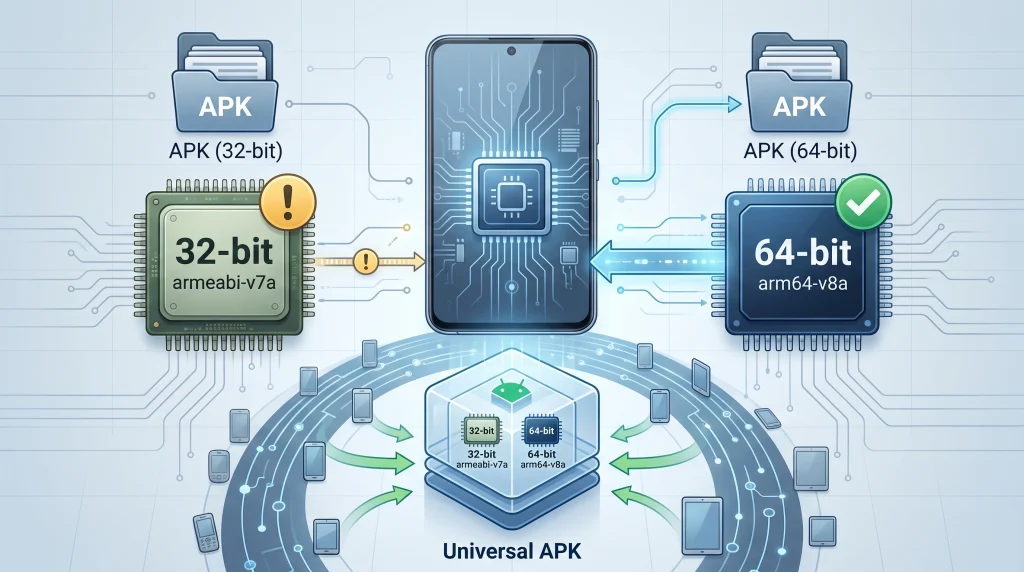
Modern Android devices (especially flagship phones powered by modern Snapdragon, Tensor, or MediaTek processors) have transitioned to 64-bit-only hardware and drop support for legacy 32-bit (armeabi-v7a) applications.
Additionally, modern operating systems enforce minimum target SDK rules: attempting to install legacy APKs built for ancient Android versions on a modern device will result in immediate rejection by the OS.
| Architecture Type | Device Compatibility |
|---|---|
arm64-v8a | Standard for almost all modern Android phones (64-bit). |
armeabi-v7a | Legacy 32-bit format; blocked on newer 64-bit-only SOCs. |
x86 / x86_64 | Android emulators, Chromebooks, and specialized hardware |
| Universal | Contains all libraries; larger file size, works broadly |
How to Fix It:
- When choosing a download variant from an APK repository, always pick the
arm64-v8aor Universal variant. - Check the app’s minimum Android version requirements to confirm your phone’s OS version is supported.
4. Insufficient Storage for Unpacking & Compilation
An APK file is a compressed package. During the installation process, the Android Runtime (ART) must:
- Decompress the
.apkarchive. - Extract native libraries (
.sofiles). - Pre-compile DEX bytecode into machine code.
If your phone has only 300 MB of free storage and you attempt to install a 150 MB APK, the installation will fail with “App Not Installed” because the extraction process runs out of working buffer memory.
How to Fix It:
- Free up at least 1.5 GB to 2 GB of internal storage before running large game or utility installers.
- Go to Settings > Storage and use the built-in cleanup tool to clear temporary cache files, duplicate downloads, and unused media.
5. Blocked by Google Play Protect or OEM Auto-Blockers
Google Play Protect actively monitors manual sideload attempts. If an APK is unverified, unsigned, or unrecognized in Google’s database, Play Protect may silently abort the background installation process. Similarly, security suites like Samsung Auto Blocker (One UI) or Xiaomi Security may prevent unknown installations by default.
- Open the Google Play Store:
Tap your profile icon in the top right corner and select Play Protect.
2. Access Protection Settings:
Tap the Gear (Settings) icon in the upper-right corner of the Play Protect screen.
3. Toggle off Scan Apps with Play Protect: Temporary troubleshooting measure.
Turn off Scan apps with Play Protect and Improve harmful app detection.
4. Check Samsung Auto Blocker: For Samsung users only.
Go to Settings > Security and privacy > Auto Blocker and ensure it is toggled off during installation.
5. Install the APK and Re-enable Security:
Install your APK package, then return to Play Protect settings and turn scanning back on.
6. Trying to Install a Standalone Base APK from a Split Bundle
Many modern Android applications are distributed as Android App Bundles (AAB) or Split APKs (.apks, .xapk, .apkm). These formats break an app into separate pieces:
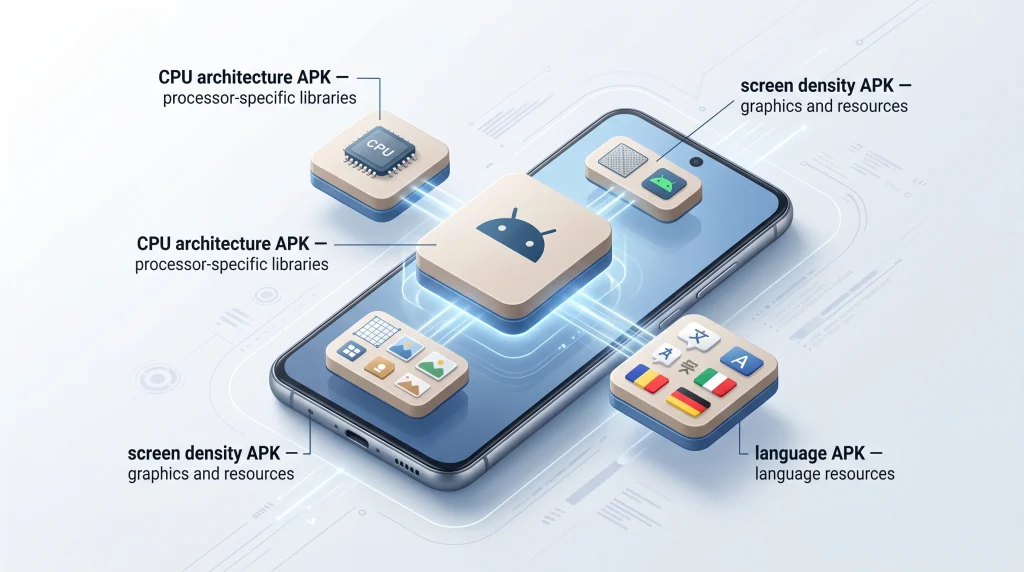
base.apk(Core application code)config.arm64_v8a.apk(CPU architecture instructions)config.xxhdpi.apk(Screen density graphics)config.en.apk(Language resources)
If you extract a split bundle and attempt to install just the base.apk using Android’s standard default installer, the process will fail every time because the app is missing its required architecture and resource files.
How to Fix It:
- Do not rename
.xapkor.apksfiles to.apk. - Install a dedicated split package installer utility (such as Split APKs Installer (SAI or the official installer app provided by your APK repository).
- Open the split installer tool, select the whole
.xapkor.apkscontainer, and let the tool assemble and install the full package together.
Quick Diagnostic Flowchart
If your APK still refuses to install after running through the steps above, use this quick checklist:
- Reboot the device to clear stale package manager locks.
- Confirm you have enabled “Install Unknown Apps” for your specific browser or file explorer.
- Verify the APK file integrity by checking its hash or uploading it to VirusTotal.
- Confirm the app isn’t already installed inside a hidden Secure Folder, Private Space, or secondary user profile on your device.